
All 16 apps and what their numbers mean#
Every number carries its unit. Two dashes (–) mean there is no value yet, usually because no drive is running. The board captures were taken on a bench with no car connected, so most of their values are dashes. The host renders show example values from a drive.
Drive#
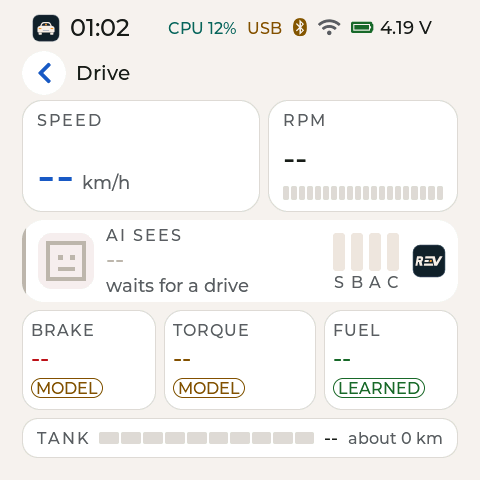
Drive, light theme, with R.E.V in use, before a car is connected.
The live view for the road.
Speed: road speed in km/h
RPM: engine speed, with a bar
AI sees: the model’s call on the last few seconds. Its four bars are S (stopped), B (braking), A (accelerating) and C (cruising). A mark at the right shows which model is in use.
Brake, Torque, Fuel: the model’s three estimates. A tag says where each number comes from. MODEL is the model’s estimate. LEARNED is a fuel figure R.E.V has learned in your car, shown only while R.E.V is in use.
Tank: the fuel level as a bar, and the range in km
End drive: hold it for 1 second. The drive ends and the Summary opens.
AI#
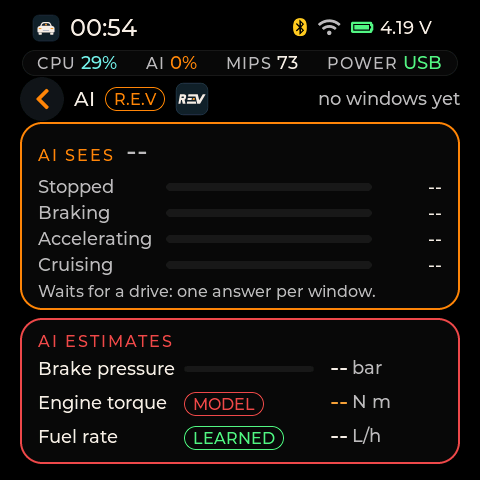
AI, dark theme, with R.E.V in use, before the first window.
What the model in use sees, in more detail.
AI sees: one bar each for Stopped, Braking, Accelerating and Cruising. The model gives one answer per window, a short slice of the drive. “No windows yet” means it has had no driving to look at.
Brake pressure: estimated brake pressure in bar
Engine torque: estimated engine torque in N m
Fuel rate: estimated fuel use in L/h (litres per hour)
Learning#
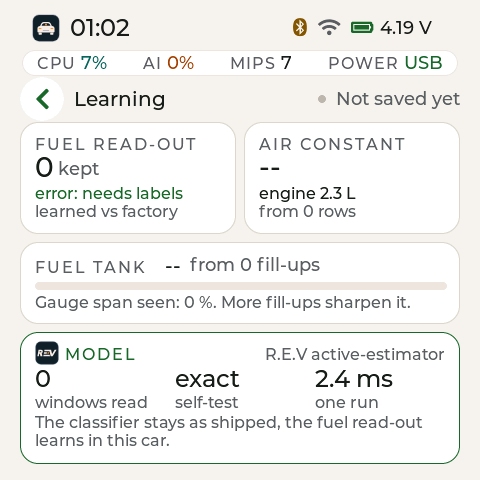
Left: Learning with R.E.V in use, on a new board: nothing learned yet. Right: Learning with E.V in use. Learning is off. Host render of the 2.0.0 screen code with example values.
What R.E.V has learned in your car so far.
Fuel read-out: how many learned updates R.E.V has kept for its fuel figure, and how it compares with the factory figure
Airflow constant: a number R.E.V learns from your engine, shown as an engine size in litres, and how many rows it came from
Fuel tank: the tank size learned from your fill-ups, and how much of the fuel gauge’s range it has seen. More fill-ups make it sharper.
Model: the model in use, the windows it has read, its self-test result and the time for one run in ms
Saved: the top right says “Saved on the board” or “Not saved yet”
While E.V runs, the cards are dimmed and the page says “Learning off: E.V in use”. R.E.V keeps what it learned.
R.E.V and E.V#
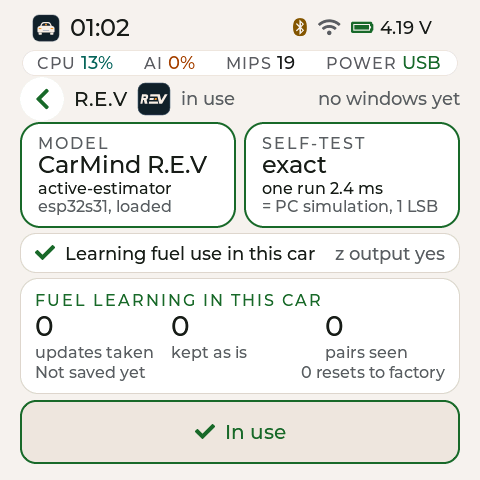
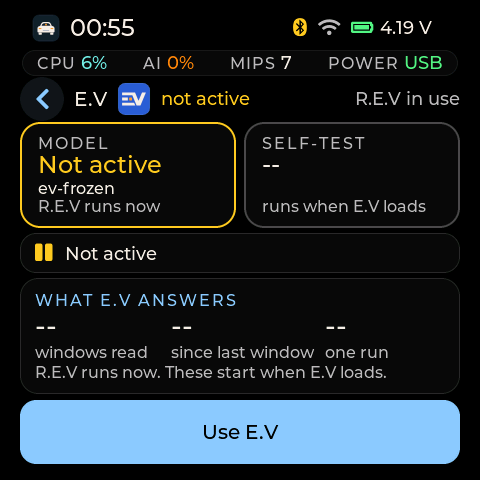
Left: R.E.V, in use, on a new board. Right: E.V, dark theme, while R.E.V is in use.
One app per model, side by side on the launcher. Each shows the model’s name, its file, its self-test and its own figures. The file shows by name: “active-estimator” for R.E.V and “ev-frozen” for E.V.
Self-test: at start the board checks the model against known answers. “exact” means it matched. “One run” is how long one answer takes.
R.E.V figures: fuel learning in this car: updates taken, updates kept as is, pairs seen and resets to factory
E.V figures: what E.V answers: windows read, time since the last window and one run. E.V runs as shipped, with no learning.
Use button: a 64 px “Use R.E.V” or “Use E.V” button. It reads “In use” for the model running. It works only while parked (see The two models).
Summary#
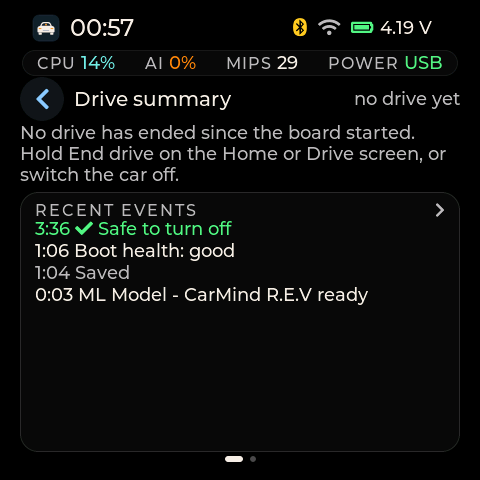
Summary before the first drive, dark theme.
The last drive, and the board’s events.
The drive: distance, time, economy and the hard-brake count
Charts: a speed and fuel chart, and what the AI saw every 10 seconds
History: charts of the last drives, oldest at the left: L/100 km and km per drive
Recent events: the board’s event list, newest first. Errors are red, warnings amber, and “Safe to turn off” is green.
The events log. Tap the events card to open the full list. Filter it with the chips All, Warnings, Errors, Wi-Fi and Drive. Tap a row to open its detail. The list keeps the newest 10 events since the board started. Each drive also keeps its own newest 24 events in its files, so the Drive filter still shows them after a long drive or a restart. The health check and the battery protection write their messages here too (see Health checks and messages).
After a restart the Summary shows the last drive again, read back from its files. The charts are not kept.
Live#
Live, light theme, during a drive. Host render of the 2.0.0 screen code with example values.
Values straight from the car, with no model in between.
Speed, Engine: road speed in km/h and engine speed in rpm
Throttle: how far the throttle is open, in %
Engine load: how hard the engine is working, in %, as the car reports it
Coolant: engine coolant temperature in °C
Fuel level: the tank level the car reports, in %
Adapter: the voltage the adapter measures at the OBD-II port, in V
Row rate: how many rows per second the board logs, in Hz, or “no data”
Fuel#
Fuel, dark theme, with R.E.V in use. Host render of the 2.0.0 screen code with example values.
Fuel use now and for this drive, and how your fill-ups correct it.
Source tag: top right: where the fuel figure comes from. NO SOURCE means there is none yet.
Fuel rate now: fuel use in L/h
Use now: the same figure as economy, in L/100 km
This drive: economy for this drive in your chosen unit (km/L here)
Fill-ups: the correction factor from your fill-ups. 1.00 means no correction yet.
Learner vs factory: how far R.E.V’s learned fuel figure and the factory figure are from the car’s own reading. It is off while E.V runs.
Brakes#
Brakes and torque, dark theme, after a minute of driving. Host render of the 2.0.0 screen code with example values.
The app title reads “Brakes and torque”. Two traces cover the last 60 s.
Brake pressure: the model’s estimate in bar, with the count of brakings and hard brakings this drive
Engine torque: the estimate in N m. The tag says MODEL for the model’s estimate, or PHYSICS when the board works torque out from the fuel and the engine size R.E.V learned.
Source line: the line under the torque trace names the source, for example “E.V estimate (no physics torque yet)”
Trip#
Trip, dark theme, during a drive. Host render of the 2.0.0 screen code with example values.
This drive so far. The top right says “Logging” during a drive and “Not in a drive” between drives.
Distance: km driven this drive
Engine on: how long the engine has run
Avg speed: average speed in km/h
Fuel used: litres used this drive
Economy: this drive’s economy, in your chosen unit
Session: the drive’s number (sNNNNNN) and how many rows it has logged
When the drive ends: a reminder: hold End drive for 1 second, and the Summary opens with the graphs
Engine#
Engine, dark theme, during a drive. Host render of the 2.0.0 screen code with example values.
The engine computer’s own sensor readings.
Trouble codes: the count of stored, pending and permanent codes, read once the car answers. The top right shows the MIL (check-engine light) state.
Battery: the car’s battery voltage in V
Intake air: intake air temperature in °C
Airflow: the airflow sensor reading in g/s
Manifold: intake manifold pressure in kPa
Short and long trim: the engine computer’s fuel corrections in %
Faults#
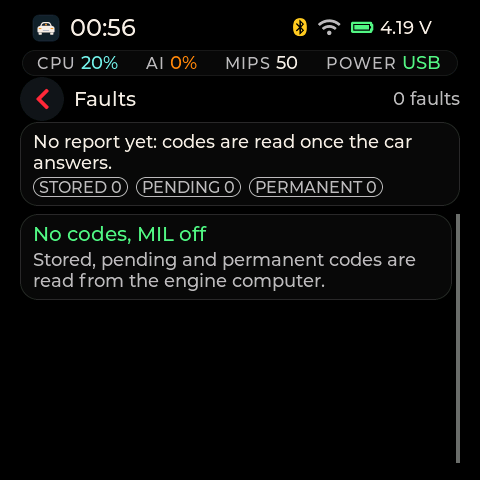
Faults, dark theme, no codes.
The trouble codes from the engine computer, in three kinds.
Stored: confirmed faults
Pending: faults seen once but not confirmed yet
Permanent: codes the car keeps until its own checks pass
Status line: “No codes” or the code count, and the MIL state
The board ranks the codes by severity and groups codes that share a cause, so several codes from one problem show together. See Alarms and faults.
Board#
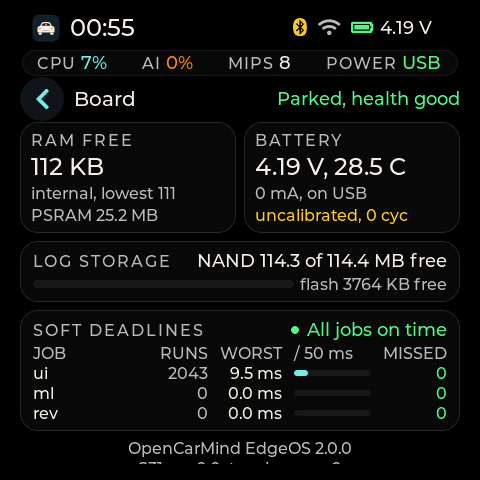
Board, dark theme, parked with health good.
The board’s own health, for checks and bug reports. The page scrolls: the RAM and battery cards, log storage and the first deadline rows fill the screen, and the rest of the table and the footer follow below.
Firmware: the firmware version, and the chip with its revision (“S31 rev” and a number)
RAM free: free internal memory in KB, the lowest it has been since start, and free PSRAM in MB
Battery: the cell’s voltage in V, its current in mA, “on USB” or “on battery”, and the temperature the fuel gauge measures, in °C. The line below says “uncalibrated” with the charge cycle count until the gauge is set up for this cell. It shows a battery protection state instead when one is active (see Health checks and messages).
Log storage: free space on the NAND in MB, and on the flash in KB
Soft deadlines: the scheduler’s job table: each job’s runs, its worst run and how many times it missed its deadline. “All jobs on time” means no misses.
Touch errors: how often the touch controller failed to answer
Header: at the top right, the board state and its health, for example “Parked, health good”. Green means good, amber degraded, red bad. During the first minute after a start it says “health pending”. Health checks and messages explains it.
Footer: two centred lines at the end of the scroll: the firmware version and the touch errors
Files#
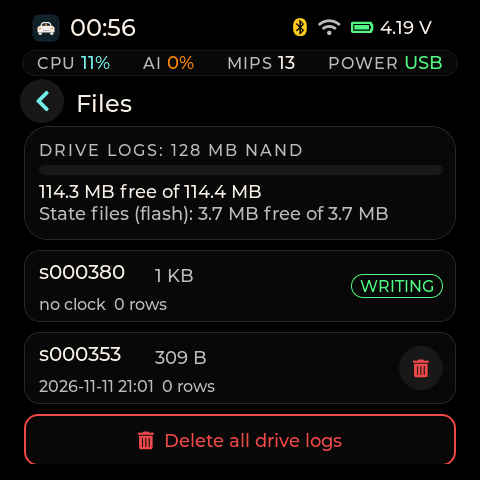
Files, dark theme, with the drive logs on the 128 MB NAND.
The drive logs on the board.
Storage: free space on the drive store
Each drive: its session number, size, rows and date. “no clock” stands in for the date when the clock was not set during that drive.
WRITING: the drive being written now. You cannot delete it.
Delete: the bin button. A confirm sheet always asks first.
Delete all: removes every drive log. It asks twice, because you cannot undo it.
Wi-Fi#
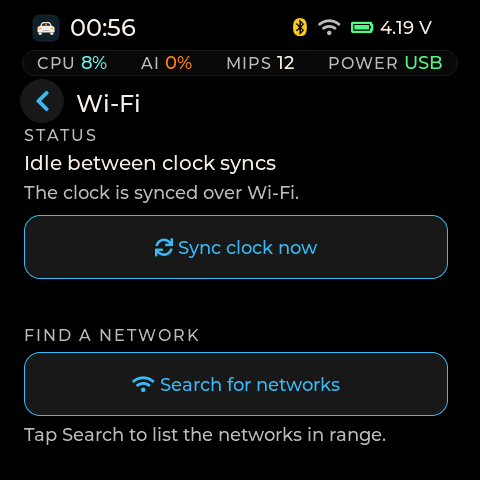
Wi-Fi, dark theme, idle between clock syncs.
Search, join and the clock sync. The radio is off unless one of these is running.
Status: what Wi-Fi is doing, and whether the clock has been synced over Wi-Fi
Sync clock now: sets the clock now from a saved network. With none saved it says “No saved network yet: search and join one first.”
Search for networks: lists the networks in range so you can join one
Saved networks: the networks the board knows (up to 8), each with Forget. The note under the list says “The board uses them only to set its clock.”
Wi-Fi covers searching and joining.
Settings#
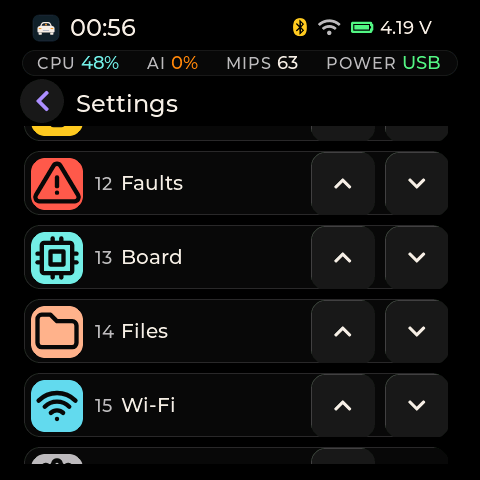
Settings, dark theme: the Home apps order.
One scrolling list of everything you can change.
Look: brightness and the theme (Auto, Light or Dark)
Model: R.E.V or E.V, switched only while parked
Clock: where the time came from, and Set clock
Units: economy in km/L or L/100 km
Screen: screen off after a time, and the order of the apps
OBD adapter: Find OBD adapter and Forget adapter
Storage: Format storage
Firmware: the version, the chip, the flash and PSRAM size
Settings goes through each one.